

We have all been there. You grab your iPhone to download a new app, check a specific website, or change a setting, and suddenly—you hit a wall. Options are greyed out, access is denied, or you are prompted for a passcode you don’t remember setting. It is frustrating, right?
Your iPhone is designed to be a powerhouse of productivity and entertainment, but when “restrictions” get in the way, it feels more like a brick than a smartphone. Whether you bought a used phone, forgot your Screen Time passcode, or just want to lift the limits on your own device, you need a clear path forward.
In this guide, we are going to break down exactly how to turn off the restrictions on iPhone, covering everything from Screen Time locks to hidden communication blocks. We will skip the technical jargon and speak in plain English so you can get your freedom back fast.
What Are iPhone Restrictions Actually?
Before we start flipping switches, it helps to know what we are dealing with. In the Apple ecosystem, “restrictions” usually refer to Screen Time (formerly known as Parental Controls). These settings are designed to limit what can be done on the device.
However, “restrictions” can also mean a few other things depending on what you are trying to do:
- Content & Privacy Restrictions: Blocks adult content, specific websites, or app installations.
- Communication Limits: Stops you from calling or texting certain people.
- Carrier/Caller ID Restrictions: Hides your number or blocks incoming “Restricted” calls.
- App-Specific Modes: Like how to disable restricted mode on YouTube.
We are going to cover all of these so you have a fully unlocked experience.
How to Turn Off the Restrictions on iPhone (The Main Method)
This is the most common fix. If you can’t delete apps, access Safari, or use the camera, this is likely where the problem lies. Apple moved these settings into the “Screen Time” hub a few years ago.
Step-by-Step: Disabling Content & Privacy Restrictions
If you have your passcode ready, this takes less than a minute.
- Open Settings: Tap the gear icon on your home screen.
- Find Screen Time: Scroll down a bit and tap on the purple hourglass icon labeled Screen Time.
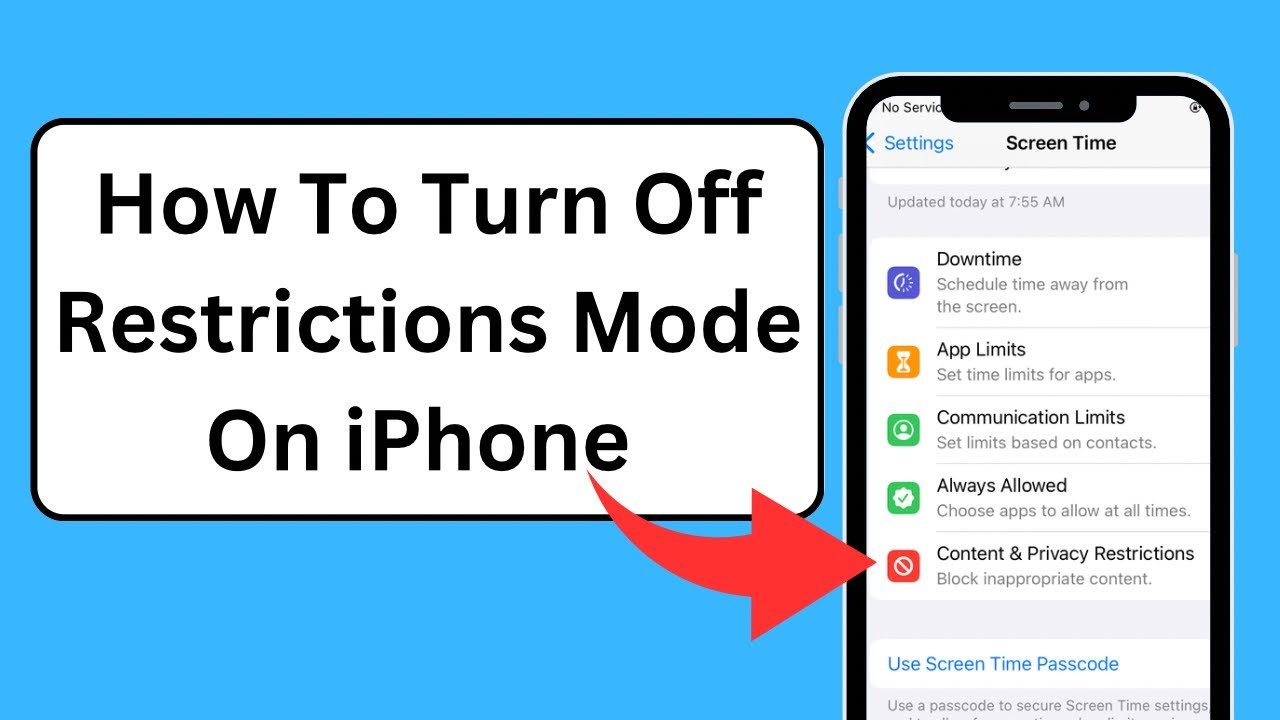
- Enter the Hub: You will see a summary of your daily usage. Look for Content & Privacy Restrictions (it is usually near the bottom) and tap it.
- The Magic Switch: At the very top, you will see a toggle switch next to “Content & Privacy Restrictions.”
- Turn It Off: Tap the toggle to turn it from green (On) to grey (Off).
- Enter Passcode: You will be asked for your 4-digit Screen Time passcode. Enter it, and voilà—how to turn off the restrictions on iPhone is solved!
Pro Tip: If you want to keep some restrictions (like blocking purchases) but allow others, don’t turn the main switch off. Instead, go through the individual menus below it and change “Don’t Allow” to “Allow” for the specific features you need.
How to Switch Off Restrictions on iPhone Without the Passcode
This is the number one problem users face: “I set this code three years ago and I have no idea what it is.” Don’t panic. You do not need to wipe your phone just yet.
Using Apple ID to Reset the Passcode
Since iOS 12, Apple allows you to reset this specific passcode if you attached your Apple ID to it during setup.
- Go to Settings > Screen Time.
- Tap Change Screen Time Passcode.
- Tap it again to confirm.
- When it asks for the old passcode, look closely at the screen. Tap the blue text that says “Forgot Passcode?”
- Enter your Apple ID and Password.
- Apple will verify you and let you create a new 4-digit code.
- Use this new code to follow the steps in the previous section and how to switch off restrictions on iPhone becomes easy.
What If I Don’t See “Forgot Passcode”?
If you don’t see that option, the device might be managed by Family Sharing (where a parent controls it) or an MDM (Mobile Device Management) profile from a workplace. In these cases, you cannot override it from the device itself; the organizer or IT admin has to do it.
Managing the Web: How to Restrict Websites on iPhone (and Unblock Them)
Sometimes the issue isn’t the whole phone, but just the browser. You might be trying to visit a specific site and getting a “Restricted Site” error. Interestingly, knowing how to restrict websites on iPhone is the key to understanding how to unrestrict them.
Unblocking Websites
- Navigate back to Settings > Screen Time > Content & Privacy Restrictions.
- Tap on Content Restrictions.
- Tap on Web Content.
- You will see three options:
- Unrestricted
- Limit Adult Websites
- Allowed Websites Only
- To remove all blocks, select Unrestricted.
If you are a parent and you actually want to know how to restrict websites on iPhone to keep your kids safe, you would select “Limit Adult Websites” here. This automatically filters out millions of bad sites. You can also manually add specific sites to the “Never Allow” list in this same menu.
Mastering Your Calls: Restricted Numbers and Blocks
Let’s shift gears. Sometimes “restrictions” refers to phone calls. Have you ever received a call where the caller ID just says “Restricted”? Or maybe you are trying to block these annoying calls?
What Is a Restricted Phone Call?
A common question users ask is: what is a restricted phone call?
A restricted call happens when the person calling you has blocked their Caller ID. They might have dialed *67 before calling you, or they have a setting permanently enabled to hide their number. To you, it shows up as “Restricted,” “Private,” or “Unknown.” Legitimate businesses sometimes do this, but it is often used by spammers.
How to Stop Restricted Calls
If you are tired of mystery callers, here is how to stop restricted calls from ringing your phone:
- Silence Unknown Callers:
- Go to Settings > Phone.
- Scroll down and tap Silence Unknown Callers.
- Toggle it On.
- Note: This sends anyone not in your contacts straight to voicemail. It is aggressive but effective.
How to Block Restricted Numbers
Unfortunately, you cannot block a “Restricted” number directly from your “Recents” list because there is no number to block. However, you can use the “Silence Unknown Callers” method above, or contact your carrier (like Verizon, T-Mobile, or AT&T). Many carriers offer free spam-blocking apps that can filter these out at the network level. This is the best answer for how to block restricted numbers without missing important calls from people you know.
YouTube and Media: How to Disable Restricted Mode on YouTube
Have you ever tried to watch a video link a friend sent you, only to see “This video is unavailable in Restricted Mode”? This is separate from your iPhone settings—it is a YouTube-specific filter.
Here is how to disable restricted mode on YouTube on your iPhone app:
- Open the YouTube App.
- Tap your Profile Picture in the top right corner.
- Tap Settings (the gear icon).
- Tap General.
- Look for Restricted Mode.
- Toggle the switch Off (grey).
Note: If the toggle is greyed out and you can’t move it, your account might be managed by a parent (via Google Family Link) or a network administrator (if you are on school Wi-Fi).
Troubleshooting: Why Does My iPhone Keep Locking Itself?
We see this search query often paired with restrictions. You are reading an article, you look away for ten seconds, and—click—the screen goes black and locks. You might think, “Is this a restriction?”
It is actually a battery-saving feature called Auto-Lock. Here is why does my iphone keep locking itself and how to fix it:
- Go to Settings > Display & Brightness.
- Scroll down to Auto-Lock.
- If it is set to “30 Seconds,” that is your culprit.
- Change it to 2 Minutes or Never (if you want it to stay on until you manually lock it).
This simple tweak can make your phone feel much less “restricted” during daily use.
Comparison: Types of Restrictions
To help you understand what you are fighting against, here is a quick breakdown of the different “locks” you might encounter.
| Restriction Type | Controls | How to Fix |
| Screen Time | Apps, Websites, Privacy | Settings > Screen Time |
| MDM / Profile | Corporate Data, Email, Wifi | Contact IT Admin |
| Carrier Blocks | Restricted Calls, Spam | Carrier App / Settings > Phone |
| App Settings | YouTube Age Limits, Netflix Profiles | Inside the specific App |
Common Errors When Removing Restrictions
Sometimes, even when you follow the steps, things go wrong. Here is a troubleshooting guide for the most stubborn issues.
### Troubleshooting Common Restriction Errors
| Error / Issue | Likely Cause | Solution |
| Toggle is Greyed Out | Family Sharing or MDM Profile | Ask the Family Organizer or delete the MDM profile in VPN settings. |
| Passcode Not Working | Changed recently or wrong ID | Use “Forgot Passcode” to reset via Apple ID. |
| Apps Still Missing | “Allowed Apps” setting is Off | Check Settings > Screen Time > Content & Privacy > Allowed Apps. |
| Websites Still Blocked | Router/Wi-Fi restrictions | Disconnect from Wi-Fi and use cellular data to test. |
| “Limit Reached” Popup | App Limits are active | Go to Screen Time > App Limits and delete the limit for that app. |
How to Stop Restrictions on iPhone: A Summary Checklist
We have covered a lot of ground. If you just want to know how to stop restrictions on iphone completely, run through this quick checklist:
- [ ] Master Switch: Turn off “Content & Privacy Restrictions” in Screen Time.
- [ ] App Limits: Delete any specific timers set for Social Media or Games.
- [ ] Downtime: Ensure “Downtime” is scheduled for “Off” or clear the schedule.
- [ ] Communication: Turn off “Communication Limits” in the Screen Time menu.
- [ ] YouTube: Check the YouTube app settings for Restricted Mode.
Conclusion
Your iPhone is a powerful tool, but it is only useful if you can actually access the features you need. whether you were stuck figuring out how to turn off the restrictions on iphone because of an old forgotten passcode, or you were battling how to block restricted numbers from harassing you, taking control of your device settings is empowering.
Remember, restrictions aren’t always bad—they are great for digital well-being and child safety. But when they get in your way, you now have the expertise to switch them off.
If you found this guide helpful, check your “Auto-Lock” settings right now—it is the easiest win for making your phone feel more open and responsive!